

Starting out on CrowOn
What to know before your first post, in the order you'll meet the screens. You don't need to switch to a creator account: insights, the link page and Studio work on every account.
What + makes
Press + at the top of Home to open the create menu.
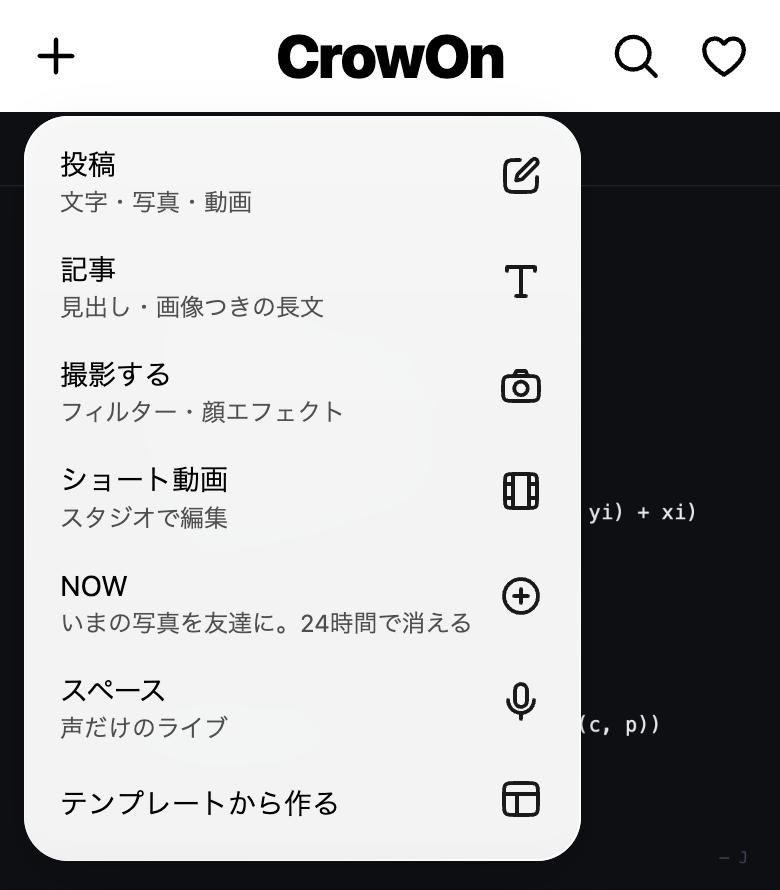
- Post
- Text, photos, video.
- Article
- Long writing with headings and images. Readers see how long it takes to read.
- Record
- Record with CrowOn's camera, with filters and face effects.
- Short video
- Edit your own photos and videos in Studio. Making Shorts
- NOW
- A photo or video from right now, for friends. Gone after 24 hours; keep the ones you like in Highlights.
- Space
- A voice-only live.
- Start from a template
- Drop your clips into a set number of slots with set lengths and the video is made.
Press and hold + to go live on camera.
Finding your way around
The tabs at the bottom are Home, Shorts, DM and Profile. The iPhone app adds a MUSIC tab.
- Home
- Posts from people you follow, plus picks from CrowOn Rank. The + at the top creates, the magnifier searches, the heart opens notifications.
- Shorts
- Vertical videos, full screen. Press and hold for 2x; choose a speed from 0.5x to 2x.
- DM
- One-to-one and group messages.
- Profile
- Tabs for posts, videos and saved. Settings open from the top right.
Your first post
- Set up your profile. Name, username, bio, photo, so people can tell at a glance what you make. Profile and link page
- Make something from +. Anything you close halfway stays in Drafts.
- Check who sees it. Your starting audience is set in Settings›Create & camera›Default post audience: everyone, friends only or only you.
- Pick a time. In the post screen, Advanced settings›Schedule sets a date and time. The post goes up then, and followers are notified then. Scheduled posts show as "Scheduled" in your drafts, where you can cancel them.
Even with few followers, every new post is first shown to a small group. How that works is in Recommendations and insights.
Screens are from CrowOn on the web. The iPhone app has the same settings under the same names.
Read next:Setting up your profile and link page