

Setting up your profile and link page
Your profile is where people go after seeing one of your posts for the first time. Here's how to set up your name, bio and link page.
Edit your profile
Open it from Profile›Edit.
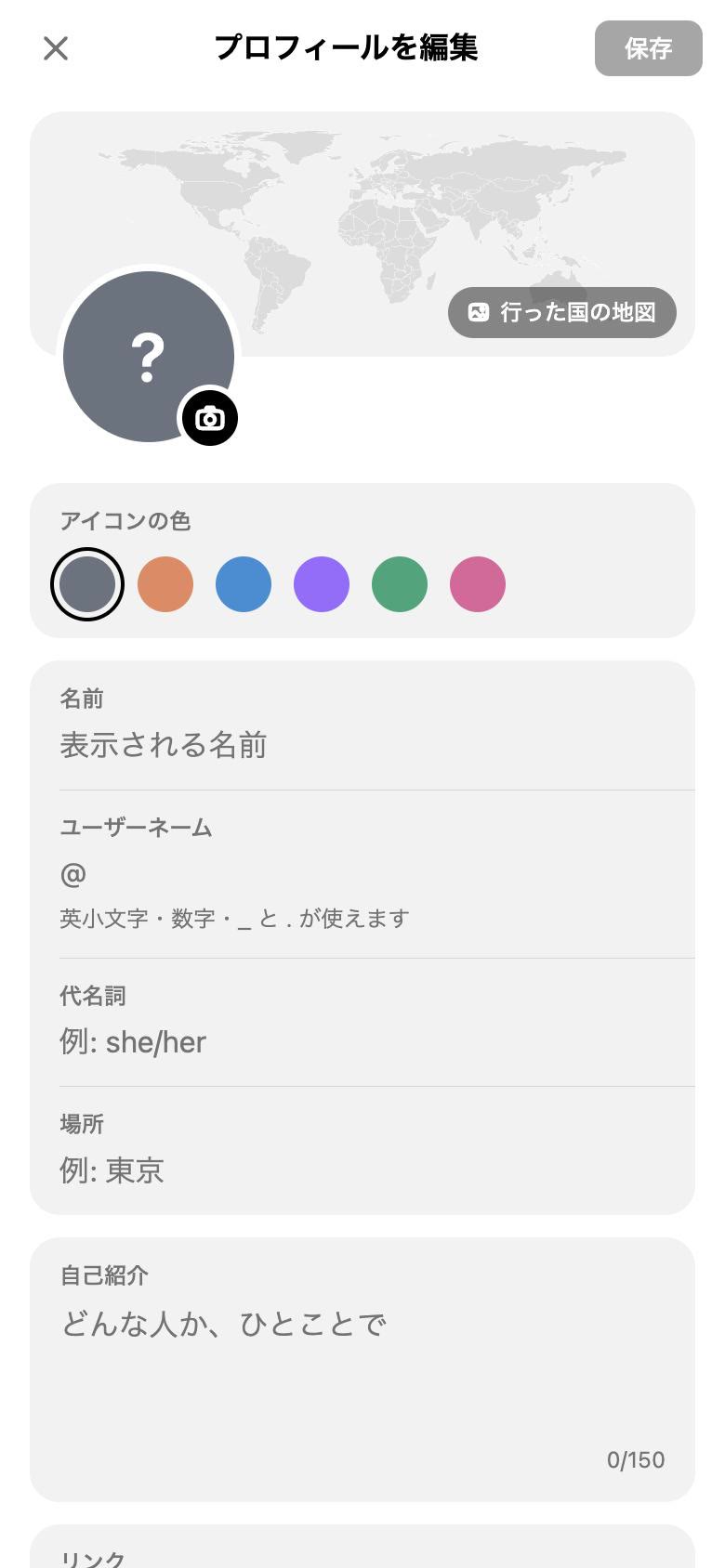
- Name
- The name people see.
- Username
- What follows the @. Lowercase letters, numbers, _ and . only. It's also your link page address.
- Pronouns and location
- Both optional.
- Bio
- Up to 150 characters.
- Icon colour
- The colour of your circle when you have no photo, one of six.
You can also change your name and username in Settings›Account & login›Change name and username.
Make your link page
Add links and you get a page at crowon.app/@username: your shop, bookings, your work elsewhere, in one place.
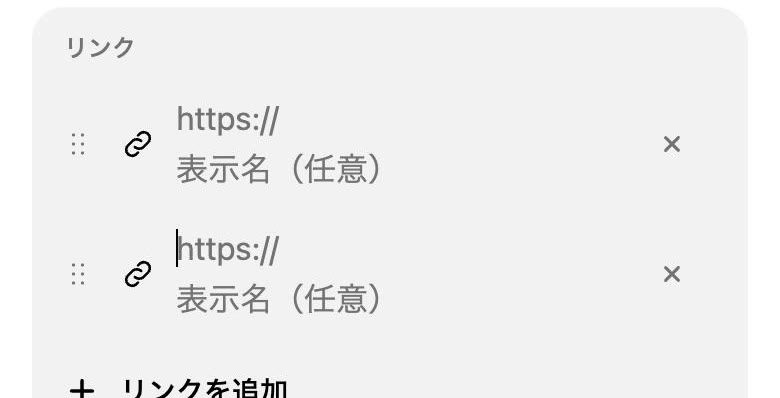
- In Profile›Edit, find Links and press Add link.
- Paste the URL. A display name is optional.
- Drag the dots on the left to reorder. Up to 20 links.
With two or more links, your profile shows a single link to the page.
How it looks
- Background
- Blur or darken the photo.
- Button shape and fill
- Rounded, pill, outline only and more.
- Text alignment
- Centred and other options.
- What shows
- Whether your profile photo and bio appear.
Hide a link for a while without deleting it. You can see how many times each link was tapped. Link page help
Verified badge
The verified badge goes to accounts CrowOn has confirmed are who they say they are. It can't be bought. Requests aren't open yet.
Screens are from CrowOn on the web. The iPhone app has the same settings under the same names.